FAQ: My Account

- View and Manage Users (including yourself)
- Add, Edit, or Delete Payment Methods (if your User type allows)
- View, Update, or Cancel Subscriptions
- View, Update, or Pay Orders
The default when you click on My Account is the Users tab.
Users
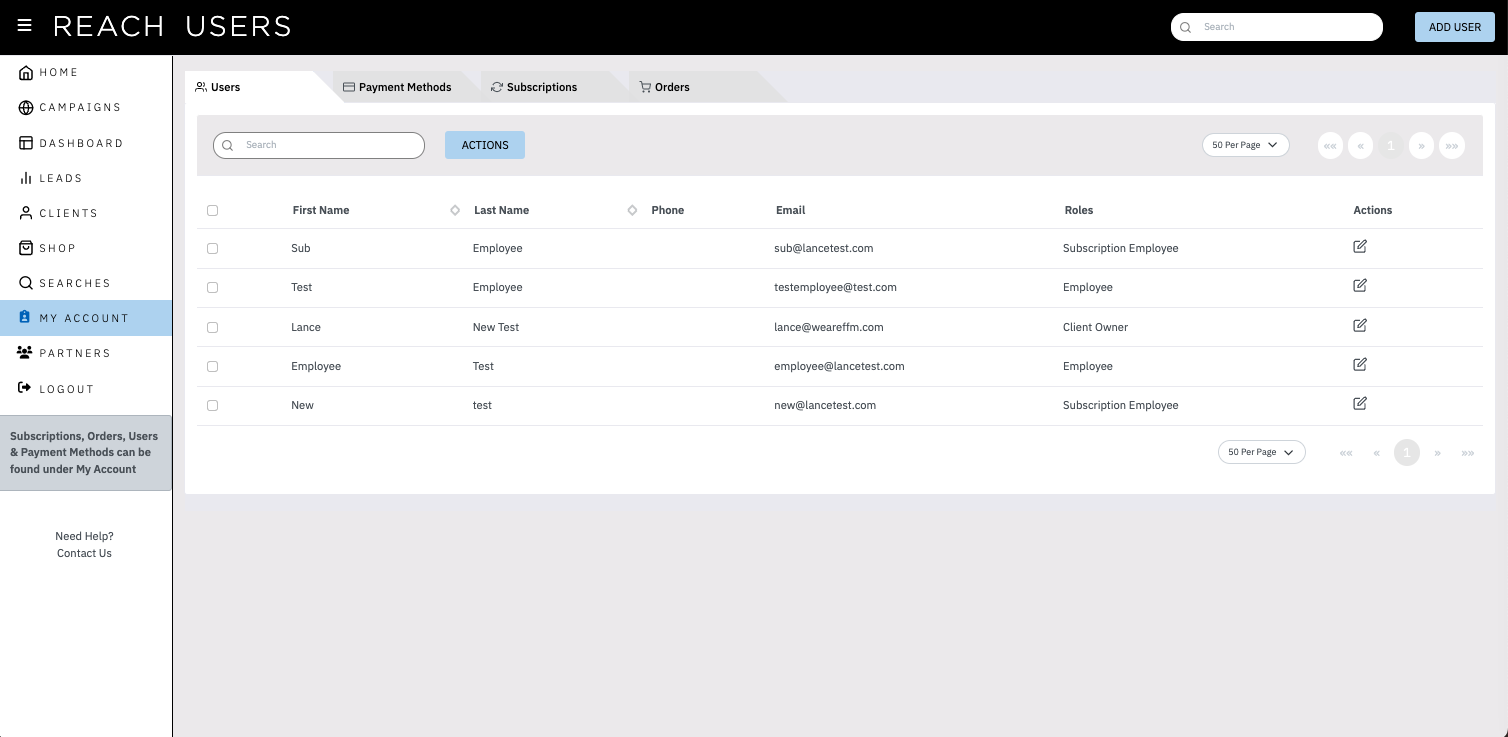
You can use the User tab to edit your own user record to change your login email or password. Just click anywhere on your User record or click the Edit icon under the Actions column all the way on the right. If you have access to create new Users, you will see the Add User button on the top right and the Actions button will have an Add User option. Editing or Adding a User will open up the following window:
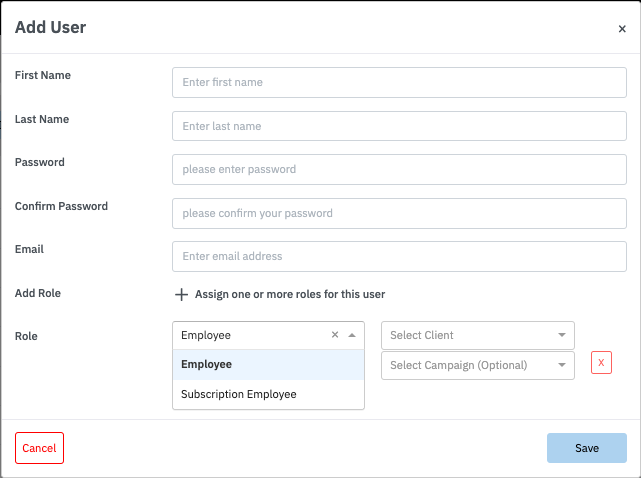
- When adding a new User, all fields are all required. Make sure to click the + button to assign a Role to the user.
- The standard Roles available are “Employee” and “Subscription Employee”.
- An Employee can view all Campaigns they are assigned to, as well as the Leads those Campaigns have generated. They can view the Subscriptions for the Campaigns they are assigned to, but cannot Add, Edit or Cancel them. They can also view all Orders from those Subscriptions. Employees have no access to Payment Methods.
- A Subscription Employee can do all the things an Employee can, and additionally can Add, Edit or Cancel Subscriptions, Pay a failed Order, and can Add, Edit or Delete Payment Methods.
- The standard Roles available are “Employee” and “Subscription Employee”.
- Each Role must be assigned to a Client record, and can optionally be assigned to specific Campaign(s).
- If you select only the Client record, they will have access to all Campaigns under that Client record.
- If you select a Campaign, they will have access to only that Campaign. In order to give access to multiple Campaigns, just click the + button to add another Role. Select the Role, Client record and Campaign you want to give additional access to. This can be repeated for as many Campaigns as you want to give access to.
Payment Methods
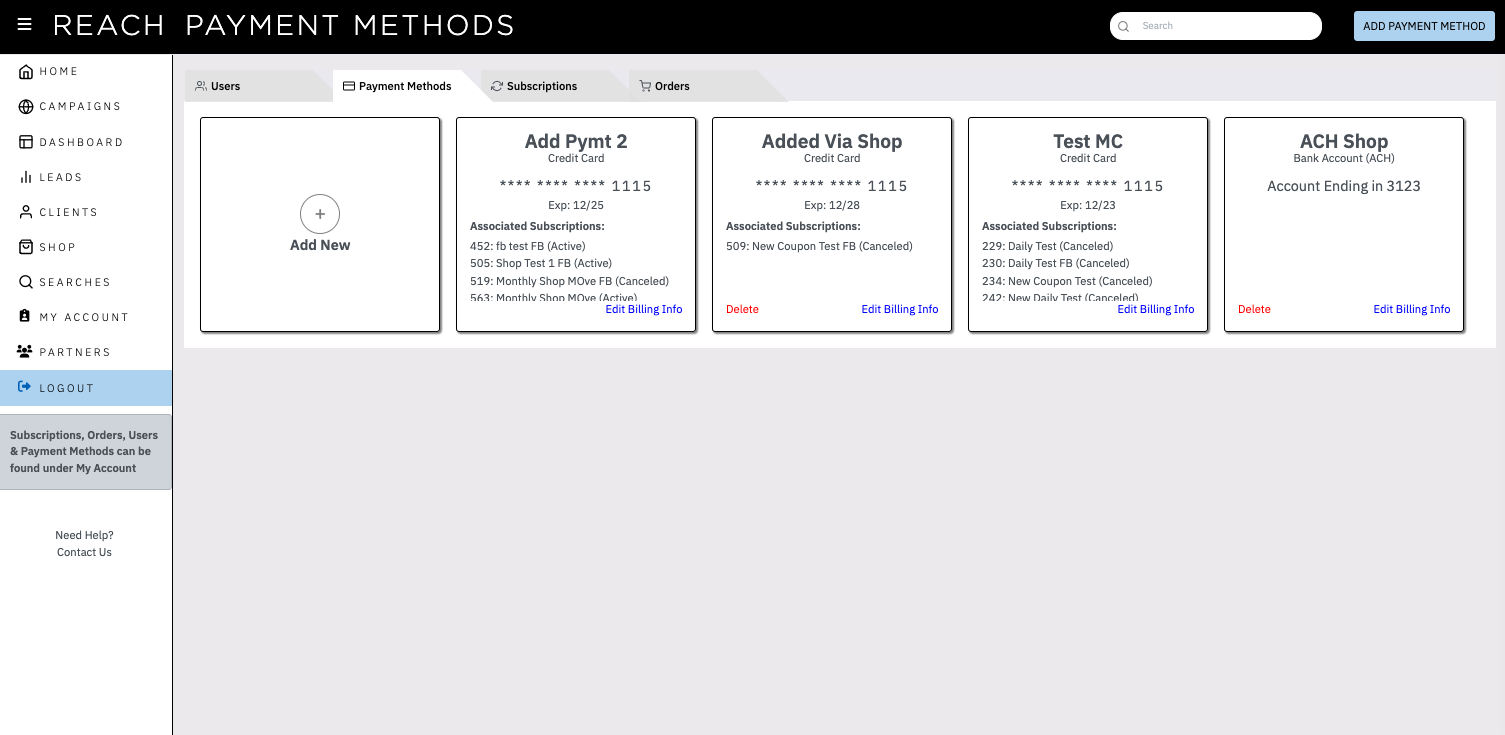
The Payment Methods page is only available to Owners and Subscription Employees. It allows you to view and manage the payment methods you have added to the system. Each payment method will display its Nickname as well as the payment method Type – Credit Card or Bank Account (ACH), and its basic details. It will also display the Subscription(s) that are associated with that payment method (if there are more subscriptions than fit in the field, you can scroll inside that field).
From this page, you can Add a New Payment Method, Delete a Payment Method, or Edit the Billing Information such as Name, Address, and Nickname (you cannot Edit a payment method to change it to a different card or change it to ACH – to do that, you need to Add a New payment method).
In order to Delete a payment method, that payment method cannot be associated with any Active subscriptions. If you don’t see the Delete button then you will need to Edit any Active subscriptions that are using that payment method to use a different payment method.
Editing or Adding a Payment Method will open up the following window:
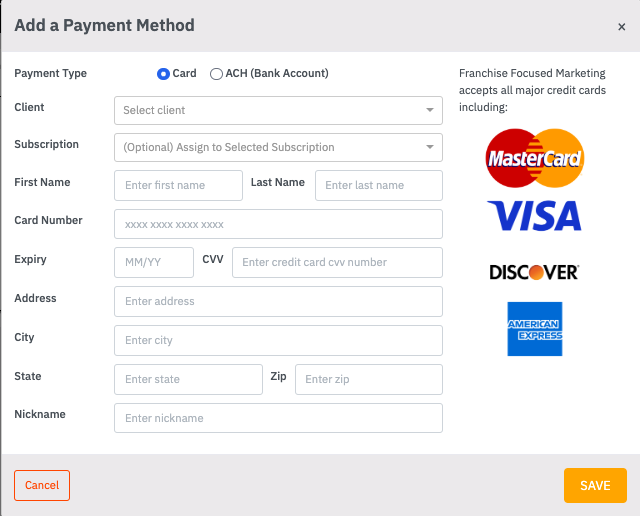
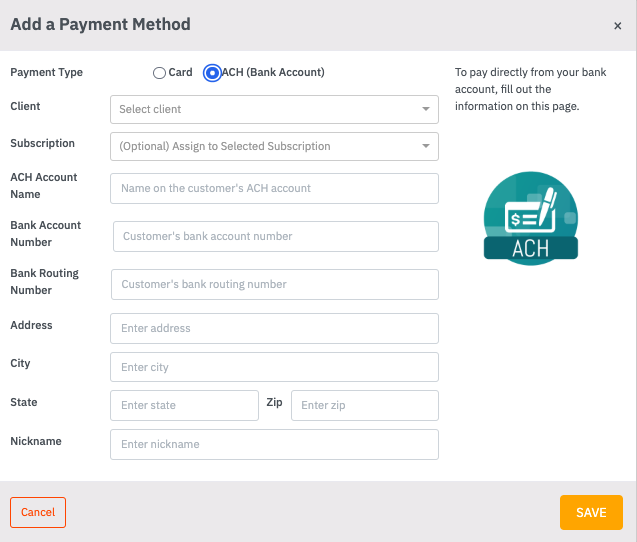
- When adding a new Payment Method, select the Payment Type – Credit Card or ACH (Bank Account).
- Select the Client record you want this Payment Method associated with. There is typically only one, but in certain situations you may have access to more than one Client record.
- Optionally, select a Subscription to assign this new payment method to (only Active subscriptions, including those with Payment Errors, are available to select). Only one subscription can be assigned when a payment method is added.
- Then fill out the remaining fields.
- The Nickname field will give you an easy way to identify this Payment Method throughout the system.
- If you want to assign a payment method to a subscription, you can do so from the Payment Methods page. You can also change the payment method when viewing a Subscription or Order.
- Use the Edit Billing Info button to bring up the Edit window, and select the subscription you want to update.
- Click Save and it will update that subscription to use the selected payment method.
Subscriptions
The Subscriptions Tab shows a list of Subscriptions you have access to. Clicking on a Subscription will take you to the details page shown here:
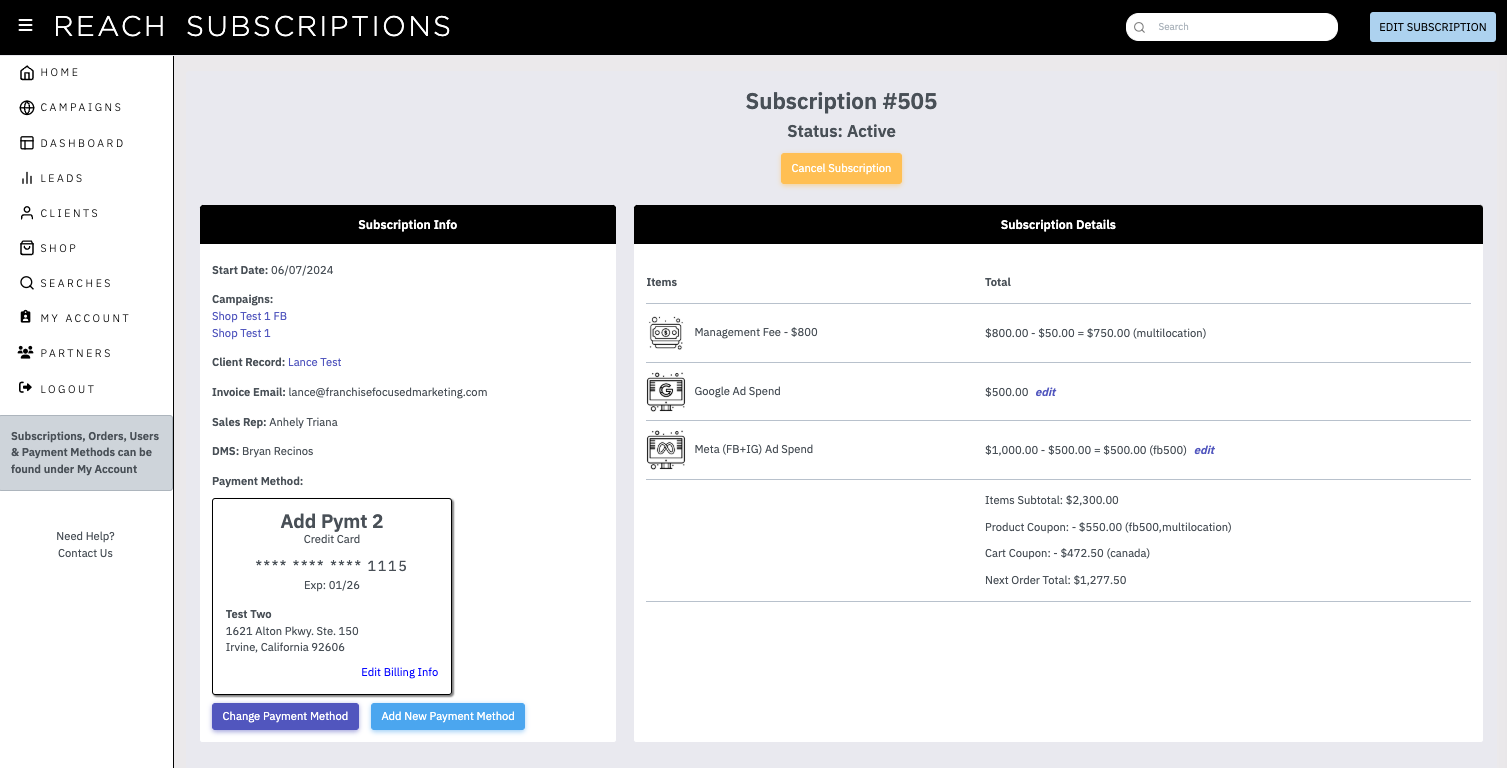
- You can change the Payment Method or Ad Spend amounts by clicking the Edit Subscription button in the top right of the page.
- You can Edit just the Ad Spend amounts by clicking the blue edit link next to any Ad Spend.
- You can Change just the Payment Method by clicking the purple “Change Payment Method” button.
- This will allow you to select a Payment Method you have previously added to your account.
- You can Add a New Payment Method by clicking the blue “Add New Payment Method” button.
- This will allow you to create a new payment method from this page and immediately assign it to this Subscription. The Payment Method window is the same as in the Payment Methods section above.
- You can click Edit Billing Info to edit the existing payment method's Billing Information such as Name, Address, and Nickname (you cannot Edit a payment method to change it to a different card or change it to ACH – to do that, you need to Add a New payment method).
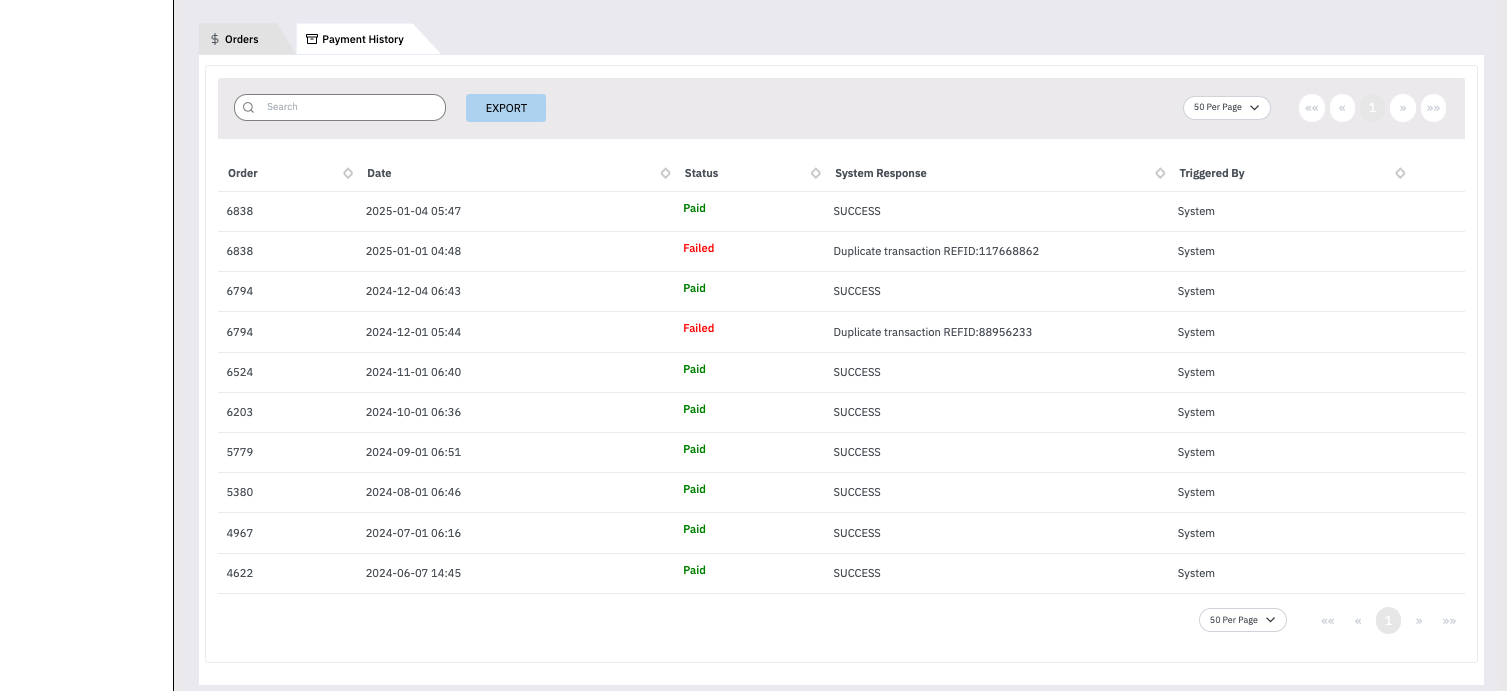
Orders
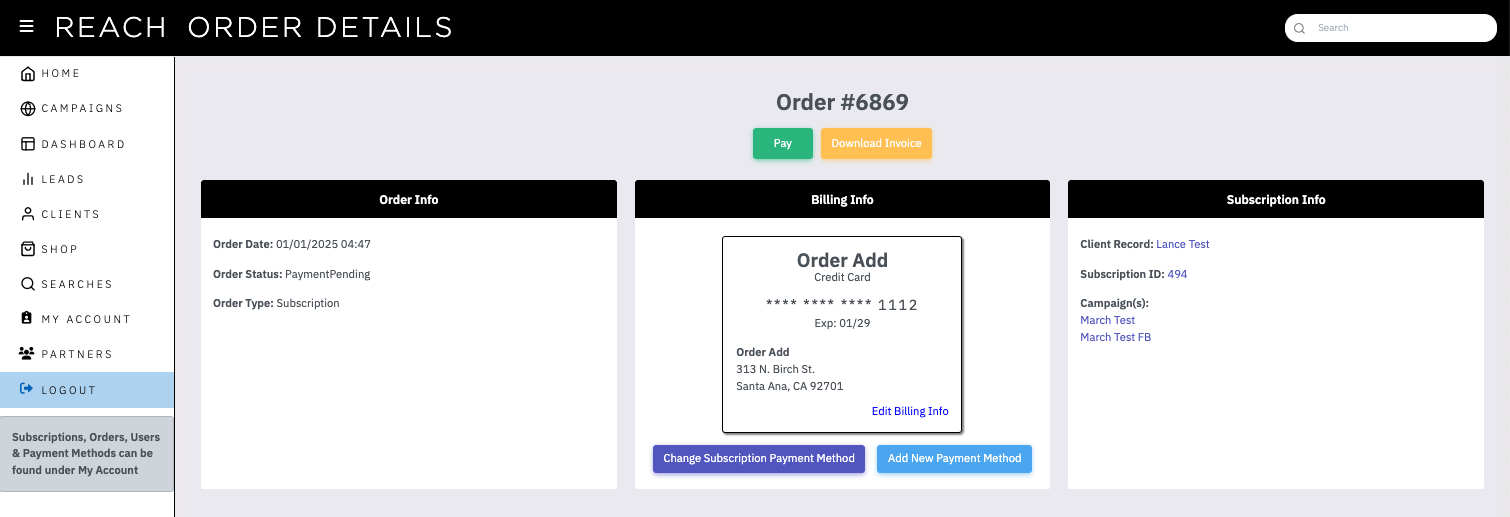
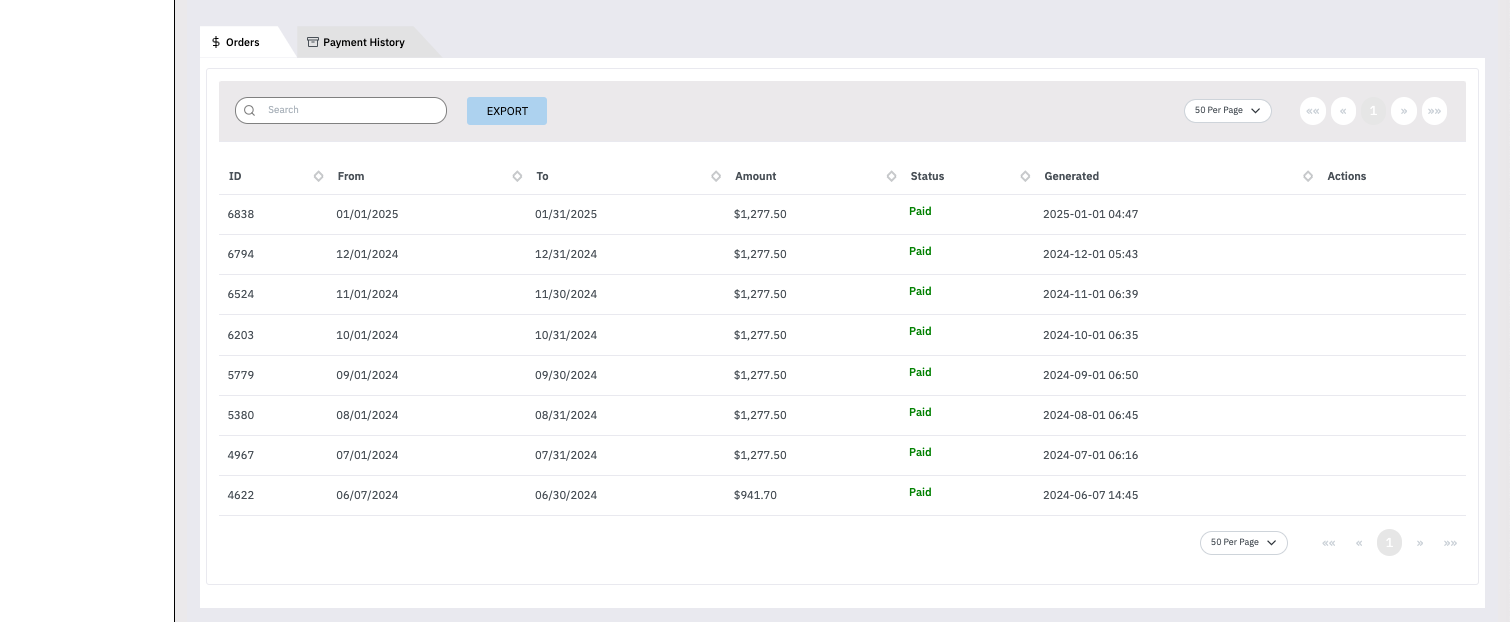
All Orders use the information from the subscription they are tied to in order to process all payments. The Billing Info and Subscription Info boxes contain this information.
- If the Order failed for any reason, you will see a green “Pay” button. If the payment failure reason has been resolved, you can click the Pay button to try and process the Order again.
- You can Change the Payment Method associated with the Order’s subscription by clicking the purple “Change Subscription Payment Method” button.
- This will allow you to select a Payment Method you have previously added to your account.
- You can Add a New Payment Method by clicking the blue “Add New Payment Method” button. This will allow you to create a new payment method from this page and immediately assign it to this Order’s subscription.
- You can click Edit Billing Info to edit the existing subscription's payment method Billing Information such as Name, Address, and Nickname (you cannot Edit a payment method to change it to a different card or change it to ACH – to do that, you need to Add a New payment method).
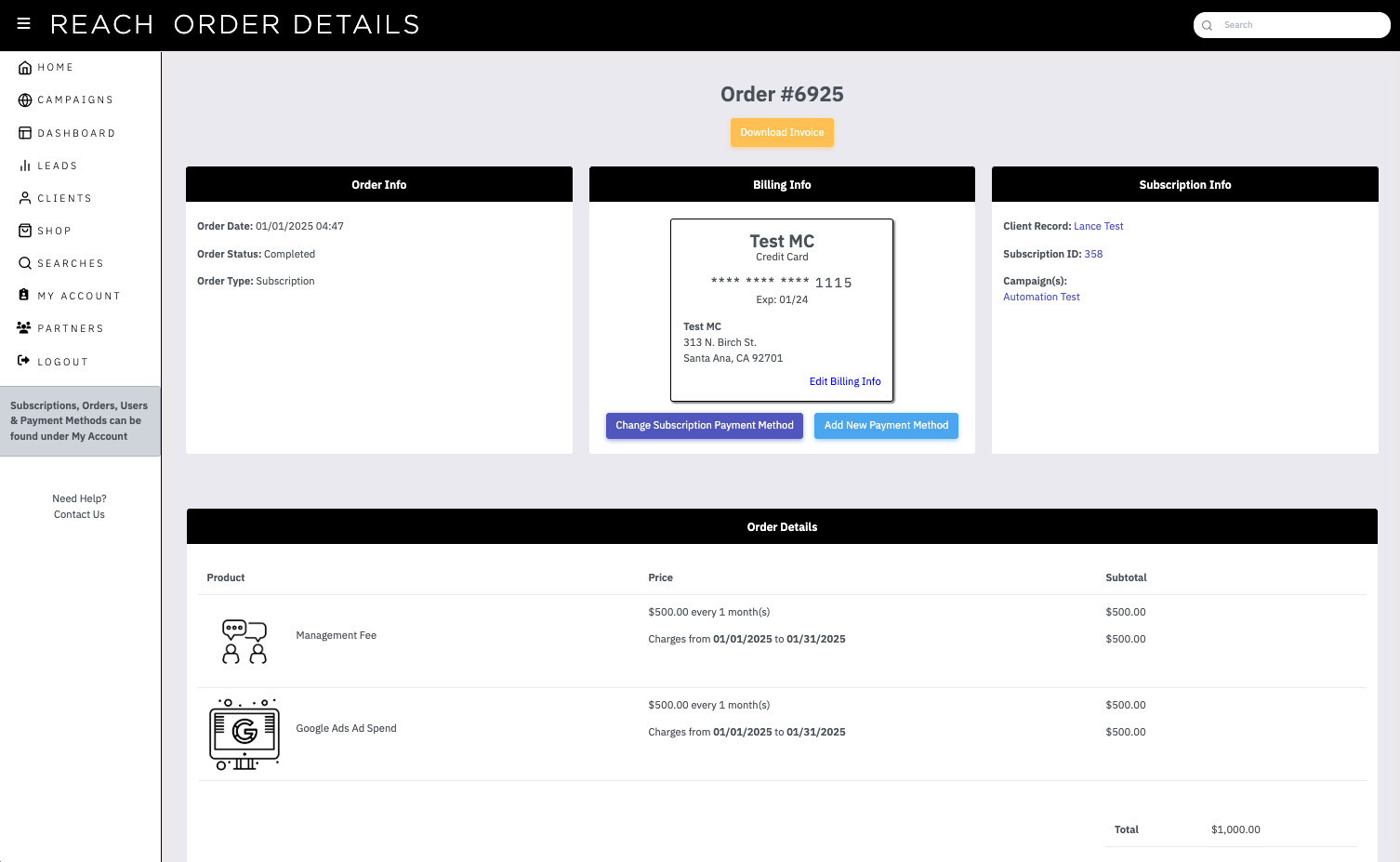
The Order Details section will show the specific Products charged on the order as well as any coupons or discounts applied to the order.